Mostrando las entradas con la etiqueta Utilidades. Mostrar todas las entradas

sábado, abril 20, 2019

Advanced Renamer: renombrar archivos

https://www.advancedrenamer.com/

Advanced Renamer is a program for renaming multiple files and folders at once. By configuring renaming methods the names can be manipulated in various ways.
It is easy to set up a batch job using multiple methods on a large amount of files. The 14 different methods enables you to change the names, attributes, and timestamps of files in one go. The files can also be copied or moved to new locations based on information in the files.
With Advanced Renamer you can construct new file names by adding, removing, replacing, changing case, or giving the file a brand new name based on known information about the file.
Before performing the operations on the files you can verify that the output will be correct and if you perform the rename and regret it, you can undo the complete batch.

martes, septiembre 04, 2018

miércoles, agosto 29, 2018

Add ‘Open With’ To The Top

This registry hack comes from Superuser JosefZ.

Open Notepad and paste the following. Save it with the name OpenWith, and the REG extension.

Windows Registry Editor Version 5.00

[HKEY_CLASSES_ROOT\*\shell\.OpenWith]
"Position"="Top"

[HKEY_CLASSES_ROOT\*\shell\.OpenWith\command]
@="{09799AFB-AD67-11d1-ABCD-00C04FC30936}"

Run the file with admin rights, and accept the on-screen warning. Once it’s been added, right-click any file, and you will see Open With at the top. Select it, and you will see the default Windows app picker menu that lets you select an app to open the file with.

You can still double-click a file and open it in the default app assigned to it. This registry edit will not interfere with the default functionality for opening files. Apps add their own options to the context menu will not be able to push this option further down the menu.

If you decide you don’t need this option anymore, go to the following location, and delete the key you added.

HKEY_CLASSES_ROOT\*\shell\.OpenWith

This little hack isn’t for everyone. Perhaps you prefer the Open option to remain at the top or you prefer a different option appear at the top. This is hack is for anyone that needs to open the same file type in multiple apps and doesn’t want to be bothered going through a rather long list of options to find the right one.

You may have noticed that after adding this key to the registry, the default Open With option doesn’t go away. This key doesn’t do anything to it which is why it remains where it is regardless if you’ve added the key or not. Touching the default Windows Open With option is probably a bad idea anyway. This registry file adds a new option that you can delete any time without worrying about breaking anything.

martes, agosto 28, 2018

Limpiar el disco rígido en forma automática–. Windows 10

Clean out your hard disk

If you’ve got a bloated hard disk filled with files you don’t need, you could be slowing down your PC. Cleaning it out can give you a speed boost. Windows 10 has a surprisingly useful built-in tool for doing this called Storage Sense. Go to Settings > System > Storage and at the top of the screen – in the Storage Sense section – move the toggle from Off to On. When you do this, Windows constantly monitors your PC, and deletes old junk files you no longer need; temporary files; files in the Downloads folder that haven’t been changed in a month; and old Recycle Bin files.

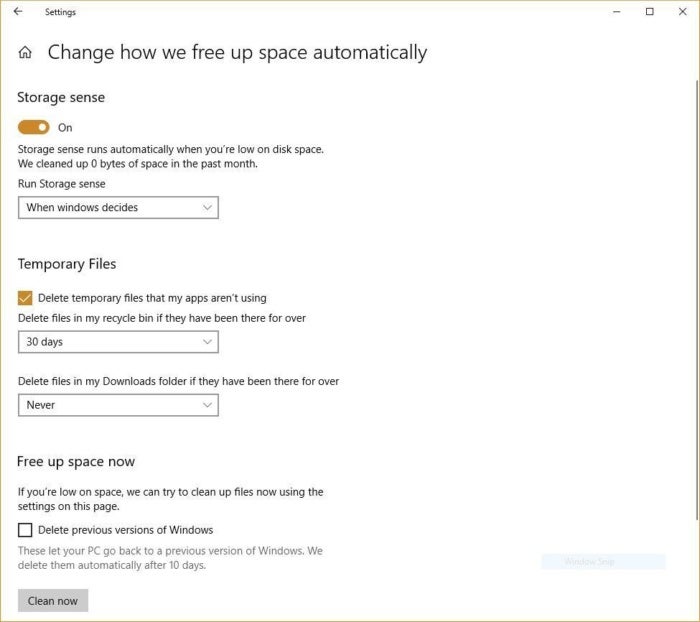
You can customize how Storage Sense works and also use it to free up even more space than it normally would. Underneath Storage Sense, click “Change how we free up space automatically.” From the screen that appears, you can change how often Storage Sense deletes files (every day, every week, every month or when Windows decides). You can also tell Storage Sense to delete files in your Download folder, depending on how long they’ve been there. And you can also set how long to wait to delete files in the Recycle Bin automatically.

storage sense Here’s how to customize the way Storage Sense works, and to tell it to delete old versions of Windows.

You can also delete old versions of Windows that might be hogging space. At the bottom of the screen, check the box next to “Delete previous versions of Windows.” Storage Sense will then delete old versions of Windows ten days after you’ve installed an upgrade. Note that if you do this, you won’t be able to revert to the older version of Windows.

lunes, febrero 13, 2012

Como utilizar WhatsApp en Windows


WhatsApp en un PC : Manual para instalar WhatsApp en el ordenador

Cracklock–El Túnel del tiempo para aplicaciones Windows


Cracklock

Esta utilidad permite protegerse del virus más polimórfico y perjudicial del fin de siglo, el que se hace llamar "El virus del trigésimo día". Este ataca tanto a los mejores como a los peores Sharewares al introducirles, al momento de instalación un error que les impide funcionar más allá de un tiempo determinado, frecuentemente 30 días. Cracklock está a la vanguardia en la lucha contra este mortal virus que muy pocos antivirus han podido combatir.

Cracklock es además una herramienta que los desarrolladores pueden usar para verificar en sus productos el problema del año 2000, conocido por sus siglas en inglás "Y2K". Esto sin tener que cambiar la fecha de a computadora y evitándose así potenciales problemas y efectos colaterales.

Eventualmente, sería posible utilizar Cracklock, para cambiar le fecha de expiración del período de prueba de, por ejemplo, 30 días, de algún determinado software. Sin embargo, debe tenerse en cuenta, que utilizar un software, pasado el período de prueba, podría ser ilegal en algunos países.

YouWave–Emulador de Android para Windows


YouWave

Esta aplicación permite utilizar cualquier aplicación para Android, Android Market, desde Windows.